Introduction tutorial

Scratch Maze Activity Pack

🛠 What will you need?

The Scratch website. It is free to use and works on all devices.

What will you learn?
Program a maze game with:
– Keyboard or touch screen inputs for controlling a sprite.
– Selection (conditions) and sensing for interaction and game-play.
– Data variables for scoring.
– Game timer.
1. Add keyboard inputs
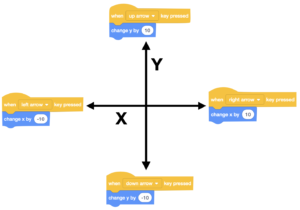
Watch the video to learn how to add keyboard inputs to control your player sprite moving around the screen. 

Touch screen inputs
If you are using a touch screen device such as an iPad, watch the second video to learn how to program touch screen inputs by adding arrow sprites that send messages to your cat (player) spite to move when they are tapped.

Costume challenge
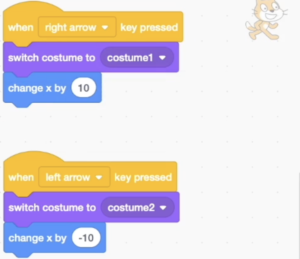
Could you add a second costume to your sprite so that when it goes in different directions it faces the correct way?

2. Maze stage
Watch the video to learn how to use the built-in stage painter to draw a maze using shapes and lines. If you are using a touch screen device then leave space for your arrow sprites.
Next, add another sprite, such as a coin that can be collected. 

3. Collect objects with selection and sensing
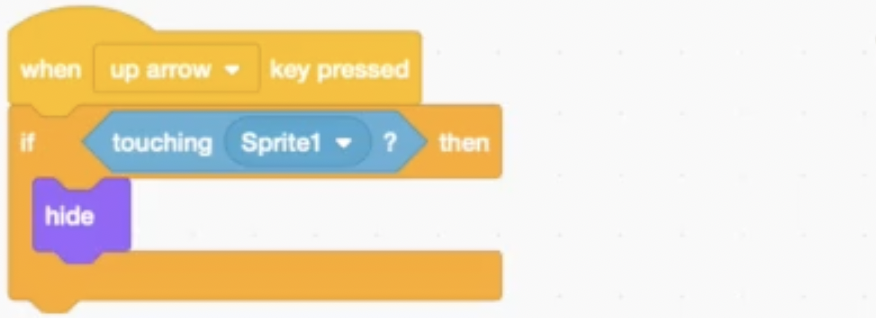
Watch the video to learn how to program selection that when the star/coin sprite is touched (sensing) by the player (cat) sprite, it disappears. This makes it look like it has collected. 
Tip: Watch the video until the end first before trying, as there is important information that will help you.

Touch screen
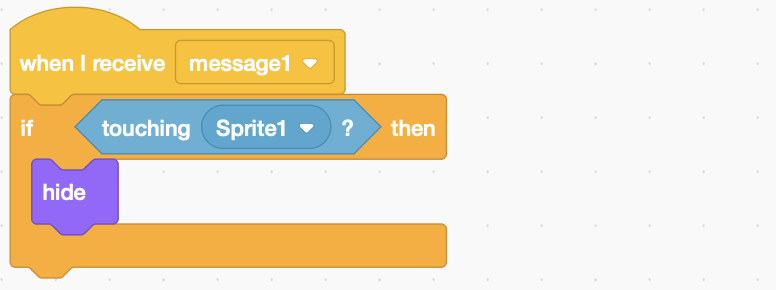
If you are using a touch screen then you can add the sensing to the star/coin sprite for each of the messages it receives instead of the arrow keys.

4. Maze Walls (Selection and sensing)
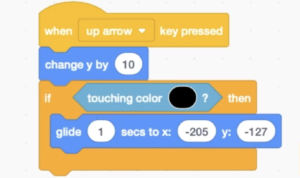
Watch the video to learn how to add selection and sensing again, so that when the player sprite (cat) touches the maze lines, it goes back to start.

Extra Challenge
How could you program the sprite so that when it touches the maze lines, it just bounces back a few steps instead of going back to the start?

Touch screen
If you are using a touch screen then you can add the sensing to the cat sprite for each of the messages it receives instead of the arrow keys.

5. Scoring (Variables)
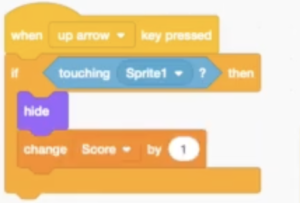
Use data variables to add a scoring system to your project so that when your sprite player collects an object, the score goes up.

Tip
If you want the score to go back to zero, double click until you see the slider to move back to zero.

Extend
Could you add another ‘change score by’ to the the player sprite that when it touches the maze wall, it goes loses a point?

6. Game timer
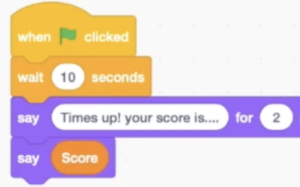
Watch the video to learn how to add a game timer to give your player sprite only so much time to collect the objects.

Can you improve it?
How could you make your game better? Add another player? Add sprites that are trying to stop you getting to the objects to collect?