Introduction to the project video

Scratch Phone/tablet Activity Pack

🛠 What will you need?

The Scratch website. It is free to use and works on all devices.

What will you learn?
Program a phone/tablet simulator in Scratch using the following commands:
– Click or touch inputs
– Message commands
– Show and hide sprites
– Costume changes
1. Phone or tablet stage
Watch the video to learn how to use a phone image as a stage. You could also draw your own within the Scratch paint editor.
Try to find an image that fills your screen and includes a home button.
You could edit your phone or tablet by adding a rectangle filled with a colour of your choice as a wallpaper for your home screen. 

2. Home button
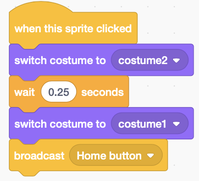
Watch the video to learn how to add a home button sprite that can be animated and send messages for app icons to receive.

3. App icons
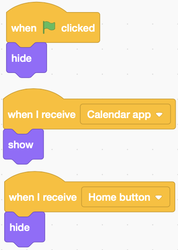
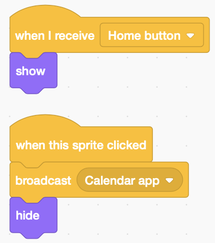
Watch the video to learn how to add an app icon sprite and how it can interact with the home button by showing it when the home button is pressed and also sends its own message (needed for next tutorial). 

4. App screens
Watch the video to learn how to add an app screen and then hide or show it when the home button or icon is clicked. The app screen sprite will receive messages sent from the Home Screen sprite and app icon sprite created in the previous tutorials.

Can you make it better?
Once you have one app working then can you can use the same skills to add more app icons, app screens and messages between them.