Mouse and Trackpad Watch the video to learn about a mouse and trackpad and how we can use them to control a computer.
Activity 1. Move the mouse and select an object (left click) Monster Eyes Move the mouse and left click the monster’s eyes to match the number! Click the arrow when you are done to try another monster.
Now try dot-to-dot to make a picture. On the first screen choose ‘Mouse’ and then which dot-to-dot you want. Left click the numbers in order. The screen will flash red if you click the wrong number! Once you have made a picture click the arrow to try another or click the x to change the numbers.
Activity 2. Click and drag Reveal the picture! Left click and drag across the screen to reveal the picture. Once you have done the first one, click the arrow to try another picture.
Dragon drop! Left click and drag the dragon around the screen without touching the walls to collect the food. The quicker you are the more points you get!
Click and drag dot-to-dot Use your click and drag skills to drag between the numbers to complete the dot-to-dot. Once you have completed one picture, click the arrow to try another.
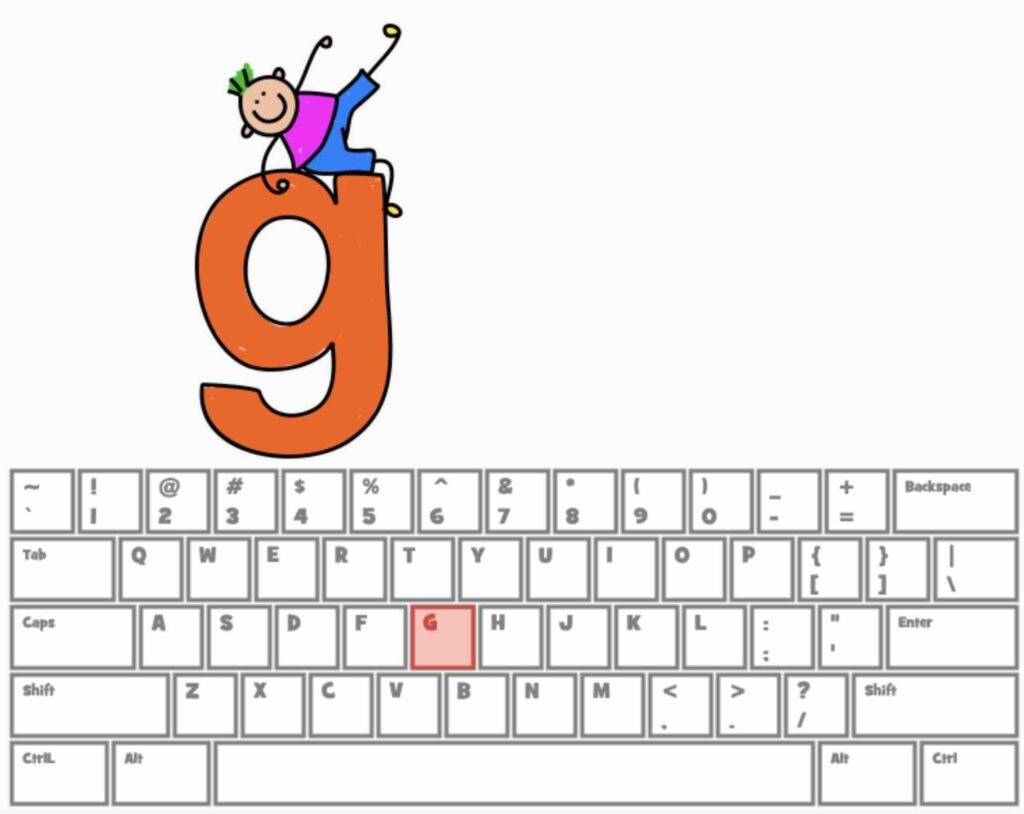
Activity 4. Find letters/numbers on keyboard then type words. Find the correct letters or numbers by clicking the key on the screen or using your keyboard.
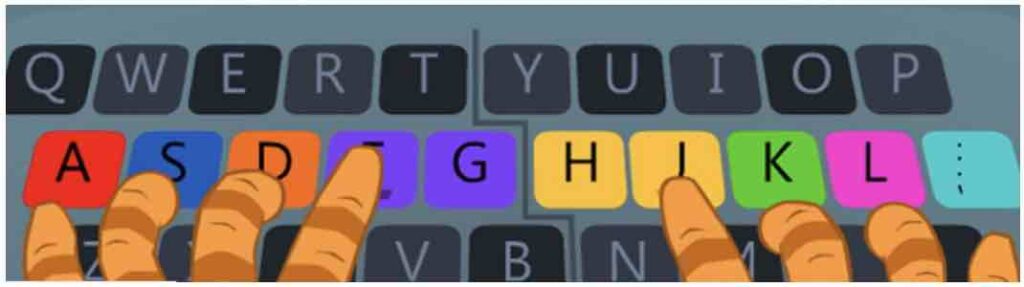
Activity 5. Home row keys and touch typing The home row keys are the middle row of keys. Try the activity below by going to number 1, watch the instructions and then try typing the home row letters and words. (Try to use all your fingers and use your thumb for the space bar)