

Year 4 Video Editing (Teacher Notes)
Progression of skills in this pack
1. Add scene images.
2. Add scripted voiceover audio, adjust the volume and crop clips (including splitting a clip).
3. Add more clips and use transition effects.
4. Add titles.
5. Use elements such as shapes.
6. Add music background music and adjust the volume.
7. Export a project.
📝 National Curriculum Content
Select, use and combine a variety of software (including internet services) on a range of digital devices to design and create a range of programs, systems and content that accomplish given goals.
⏱ 3-4 hours
🛠 What will teachers and pupils need?
Introduction and teacher input
The activity packs below guide pupils through creating a video editing project. The video tutorials for iMovie and Kapwing demonstrate how to use images to make a video guide to a piece of software such as Scratch with voiceovers, titles and music but pupils could also use the skills to add videos you may have taken in class, such as science experiments or of drama. Both pupil activity packs include an introduction video and it is a good idea to watch the videos from the respective activity packs before pupils then work independently to get an overview of the project and skills involved. Pupils may want to script their project voiceover before they start video editing, for example for a video guide to Scratch, as this is the project covered in each pupil activity pack
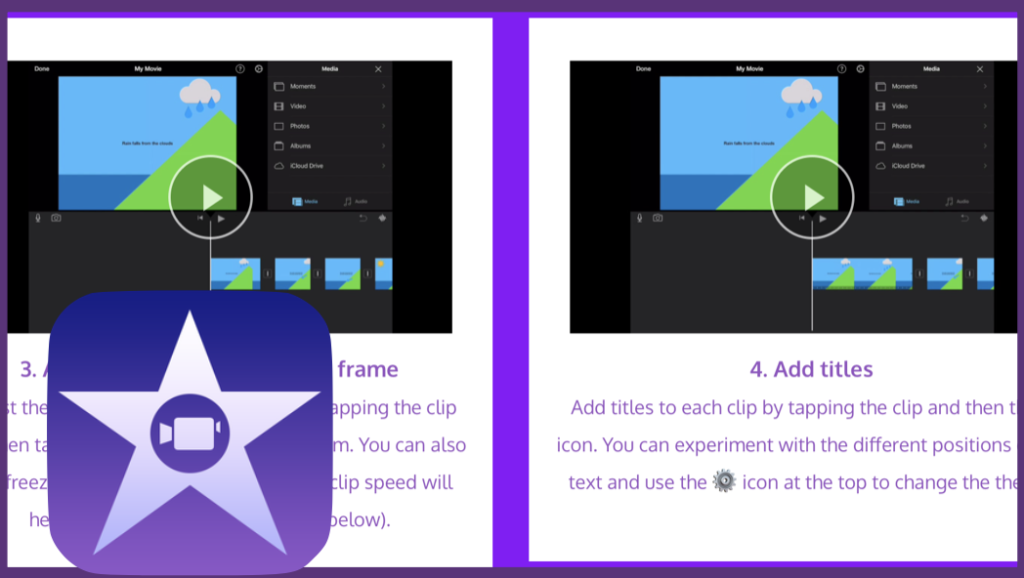
iMovie Pupil Activity Pack
Pupil Activity Code: VM54 – What is it?
The iMovie Pupil Activity Pack guides pupils through creating a project and introduces the skills mentioned above. Pupils can work at their own pace but should be encouraged to experiment with the different tools.

Kapwing Pupil Activity Pack
Pupil Activity Code: VK23 – What is it?
The Kapwing Video Editing Activity Pack guides pupils through creating a video guide to software such as Scratch, suing the built-in image search. Pupils can work at their own pace but should be encouraged to experiment with the different tools.
✅ Assessment
Pupils can save their projects within iMovie but also, as demonstrated in the activity pack, they can also export them to the iPad’s camera roll.
An important point to note is that you will need to export projects from iMovie before deleting original videos.
The Kapwing editor allows pupils to export their project as a video to their computer but if they have not finished then they can also save the project as a link and paste it to another program such as Word to continue the next lesson (this is covered in the last video in the Kapwing pupil activity pack)
🏅Certificates
Below is a certificate of completion for pupils that can be edited in Microsoft Word and printed. This could be awarded if you feel pupils have demonstrated the skills taught in the activities.