Year 3 Programming in Kodu (Teacher notes)
Progression of skills in this pack
1. Create a 3D place using various design tools
2. Write a program to control a character using inputs
3. Write a program with conditions to create an if statement (If the character touches an object it will disappear)
4. Add a multi-player aspect
5. Write a program with variables (scoring system)
6. Program operators (equals) to achieve a score and win game.
📝 National Curriculum Content
Design, write and debug programs that accomplish specific goal.
Use sequence and selection in programs; work with various forms of input.
⏱ 3-5 hours
Introduction
The free downloadable Kodu (Windows only) provides a platform for pupils to use the programming skills they have acquired so far into a more open-ended and creative environment. Kodu is a good introduction to programs like Scratch, particularly in Year 3, where pupils can become familiar with words such as sequence, inputs and conditions.
There are three pupil activity packs outlined below. It is a good idea to bring the class back as whole to watch the video tutorials and discuss some of the key vocabulary and skills, particularly the use of inputs to control the Kodu and the selection to have objects interact with each other.
🚦Differentiation
Lower ability pupils could use the help sheets below for support with the coding aspect in particular. Higher ability pupils should be encouraged to work through the activities below independently but also test their programs thoroughly. There are also challenges in the pupil activities, particularly the first one.
1. Programming in Kodu Pupil Activity Pack
Go to the pack >
Pupil Activity Code: KQQ2 – What is it?
Introduces pupils to Kodu to build a world and begin programming a game.
What will pupils learn
– Build a 3D world in Kodu with hills and water.
– Program Kodu characters with keyboard inputs.
– Program conditions (selection) and a scoring system.
– Add multiple players.
What will pupils need?
The Kodu software on your computer (Windows only)
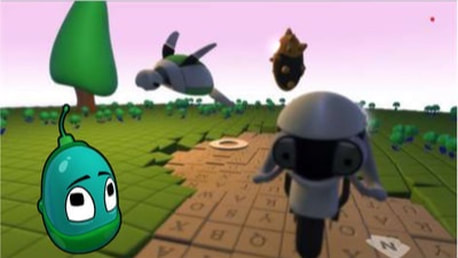
2. Programming a football game in Kodu
Go to the pack >
Pupil Activity Code: KFF8 – What is it?
What will pupils learn?
To program a football-style game in Kodu using inputs, conditions and trails.
What will you need?
Access to Kodu software on a Windows computer.
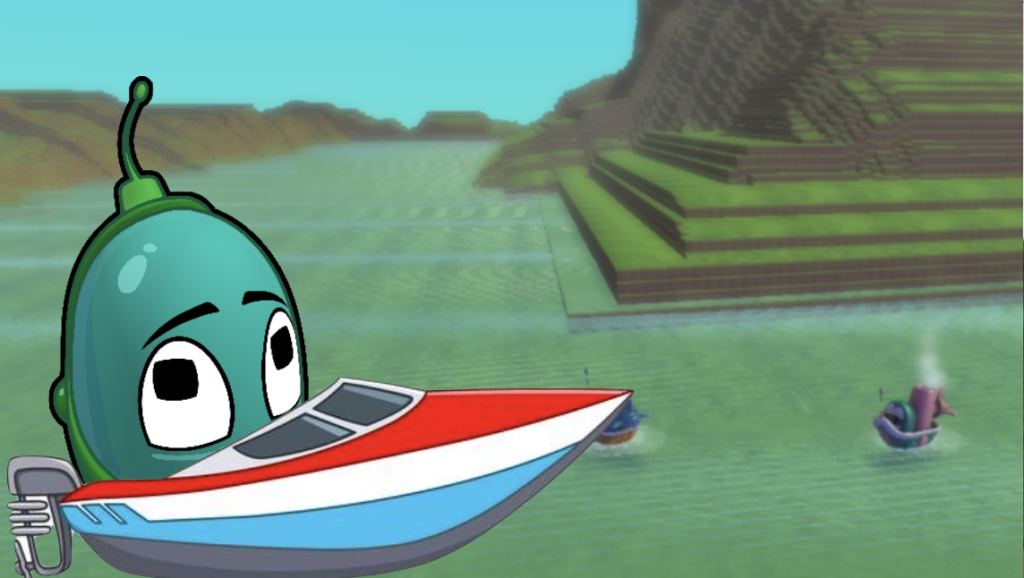
3. Programming a river racer in Kodu
Go to the this >
Pupil Activity Code: KRQ4 – What is it?
What will pupils learn?
To program a race between two Kodu using keyboard inputs, conditions and river basin/lake design
What will pupils need?
Access to Kodu software on a Windows computer.
✅ Assessment
Pupils can save their Kodu project and if Kodu has been installed on the network the pupils should be able to find their project on any computers, likewise for the teachers. However, pupils can also export their project to the downloads folder on their computer to move it to another location, such as a different folder or a cloud service. The video above demonstrates how this is done.
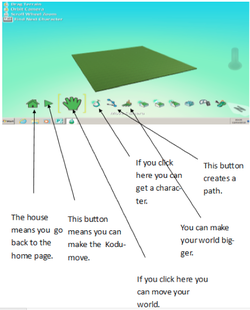
The pupils can also create Kodu User Guides with screenshots (Print Screen key and paste into a program such as Word or PowerPoint), arrows and labels explaining how Kodu works. Below is a pupil example.
🏅Certificates
Below is a certificate of completion for pupils that can be edited in Microsoft Word and printed. This could be awarded if you feel pupils have demonstrated the skills taught in the activities above.