Year 6 Python Basics (Teacher Notes)
Pupil Activity Code: PYQ3 – What is it?
Progression of skills in this pack
1. Write basic python syntax
2. Print text
3. Use Python as a calculator
4. Program loops to repeat text
5. Program interactive inputs
6. Find errors in a program (debugging) (unplugged activity)
7. Program a trivia chatbot using ‘send message’ functions (challenge)
National Curriculum Content
Design, write and debug programs that accomplish specific goals; solve problems by decomposing them into smaller parts.
Use sequence, selection, and repetition in programs; work with variables.
Use logical reasoning to explain how some simple algorithms work and to detect and correct errors in algorithms and programs.
Use a textual programming language to solve a variety of computational problems. (Key Stage 3)
3 hours
What will teachers and pupils need?
Pupils can work through activities below using their their own activity pack (see code above)
Toxic Jungle and Code Combat website (Task 1), Python editor and Chatbot website.
Prior learning
Pupils should have completed the Year 5 Text-based Programming Activity Pack before this pack as it introduces text-based programming.
Teacher input
Python is a type of programming language (different from Java, HTML etc). It is a text-based language and allows you to program short commands quickly. It is a powerful language used by many famous services, such as Google (Youtube), Netflix, Facebook, Instagram and NASA. Remind the pupils that they need to type the commands correctly or the program will not work. We have created a video below, which can be used to help with teacher input and introduce the language.
Assessment
Below is a downloadable assessment grids plus a printable/editable certificate of completion.
As outlined in task 1, you can also provide pupil access to the Code Combat website using a code, which means you can track pupil progress for task 1. For tasks 2-6 pupils use the Trinket Python Editor, which allows pupils to save each program as unique web-link. The video below (after task 1 but before task 2) demonstrates how pupils can use the Trinket editor to complete tasks 2-6 and for each activity they can share program as link and put it into a document such as Word or Google Docs, which can then be saved for teacher assessment.

Unplugged Activity
Below is a downloadable PDF with challenges for pupils (and teacher answers). The programs match the ones in activities 2-6 below and in the pupil activity pack but each has 2 errors in it (debugging). Pupils can circle the errors and use the pupil activity pack to check against but higher ability pupils could try and do it without the activity pack. As an extension, pupils could also label the circles with that the code should be.
Pupil Activity Pack (Teacher view)
What is Python?
This video demonstrates how and why Python is used to program different software and websites. It also includes tips for programming in Python yourself.
1. Use Python Syntax
Toxic Jungle
Watch this video which covers the first 3 levels of Toxic Jungle. It demonstrates how to write direction commands in Python (known as Syntax rules). Then try the levels yourself.
Code Combat
This video tutorial describes how to use the Code Combat website to write basic python syntax to complete a series of challenges.
The website is free to access and, as described in the video, pupils can just click play to begin the levels.
However, if you want to track pupil progress through the levels, this can be done by creating a free teacher account and providing pupil access. This is outlined here.
Using the Python editor
You can use the Python editor to type the code on the left and then click run to see it on the right. This video demonstrates how to use the editor and also share a link to each of your programs for the next 5 tasks.
2. Print text
Open the Python editor and use the print command to program python to show some text on-screen. For example, you could print a question and answer such as a joke. Then click play to see it on the right side.
Look out for the some of the special functions such as:
\n = new line
\\ = backslash
\” = allows you to add a speech mark (because a speech mark used on its own is part of the print command).
3. Calculator
Open a new Python editor and try using Python as a calculator.
Remember that / is divide and * is times.
4. Loops
Open a new Python editor and use the print command then \n” *50 to repeat the text by changing the number.
5. Interactive Inputs
Open a new Python editor and use inputs and print code below create an interactive program where the user answers a question (e.g What is your name?) and then can input an answer. Try the code below and when that is working, experiment with different questions.
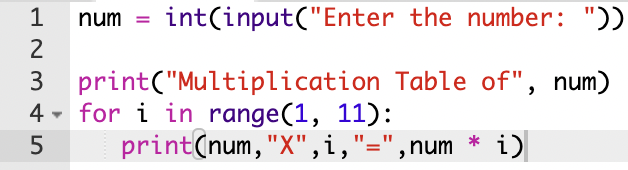
6. Times table input ranges
Open a new Python editor and use inputs, range and print to program printing of a times-table.
Challenge
Can you combine the interactive inputs task above with this one to ask the user to choose a times table and then print the times table they have chosen?
Trivia Chatbot Challenge
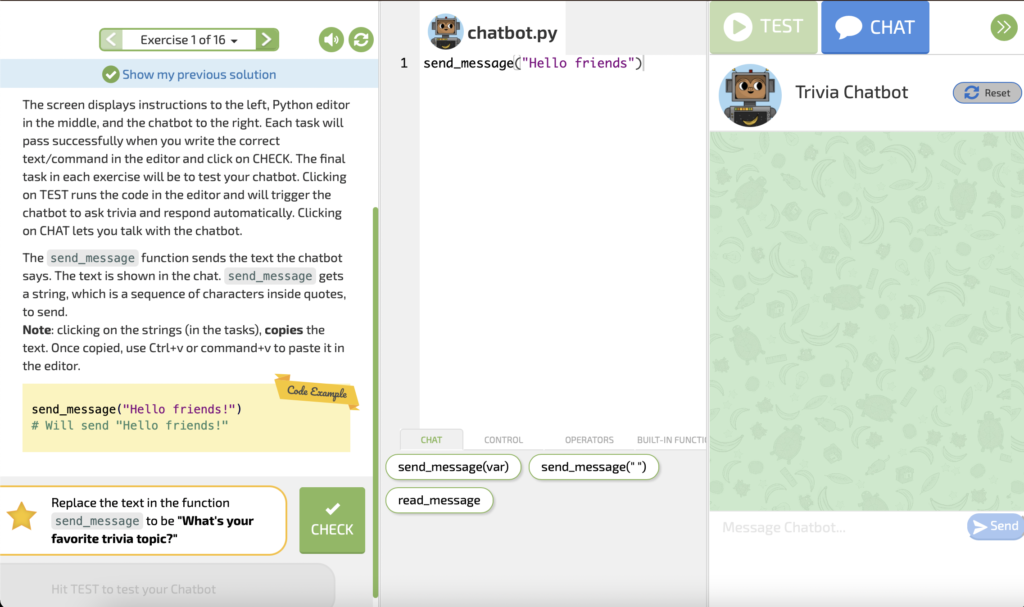
Try to use the send message function to create an online chatbot. Open the Trivia Chatbot website and read the instructions for each exercise down the left side. Try the task next to the star by typing it into the editor in the middle of the screen and testing it on the right side of the screen. You can click the green check button to see if you are correct and then go onto the next exercise.
Toxicode Challenge
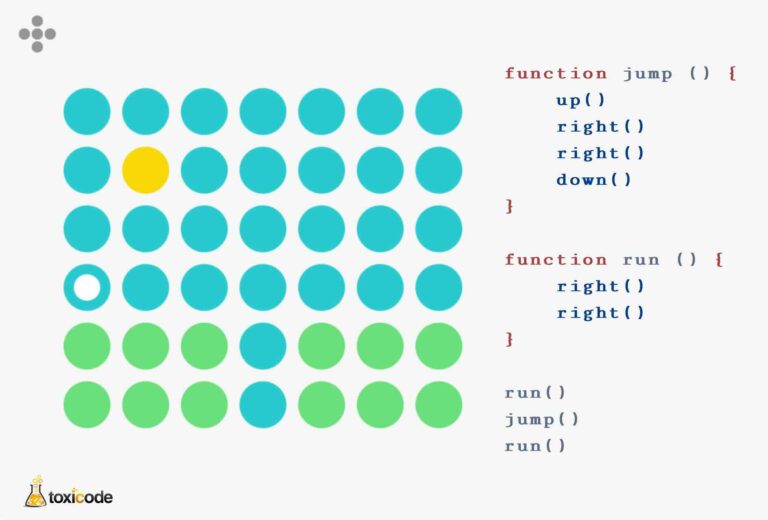
Try the different challenges on the Toxicode website. Read the Python code and use the arrows on your keyboard (or swipe left, right, up or down on an iPad/touch screen) to move the white circle on the correct path. The levels get more difficult moving onto using loops and then functions (a piece of code to carry out more than one task scubas the function ‘Jump’ in the example below).